azsb – Azure Service Bus CLI and terminal UI
Browse Azure Service Bus namespaces, queues, topics and subscriptions, peek and receive messages, and resend or retry dead-letter messages, all from your terminal.
dotnet tool install -g Net.Azure.ServiceBusConsole
az login
azsb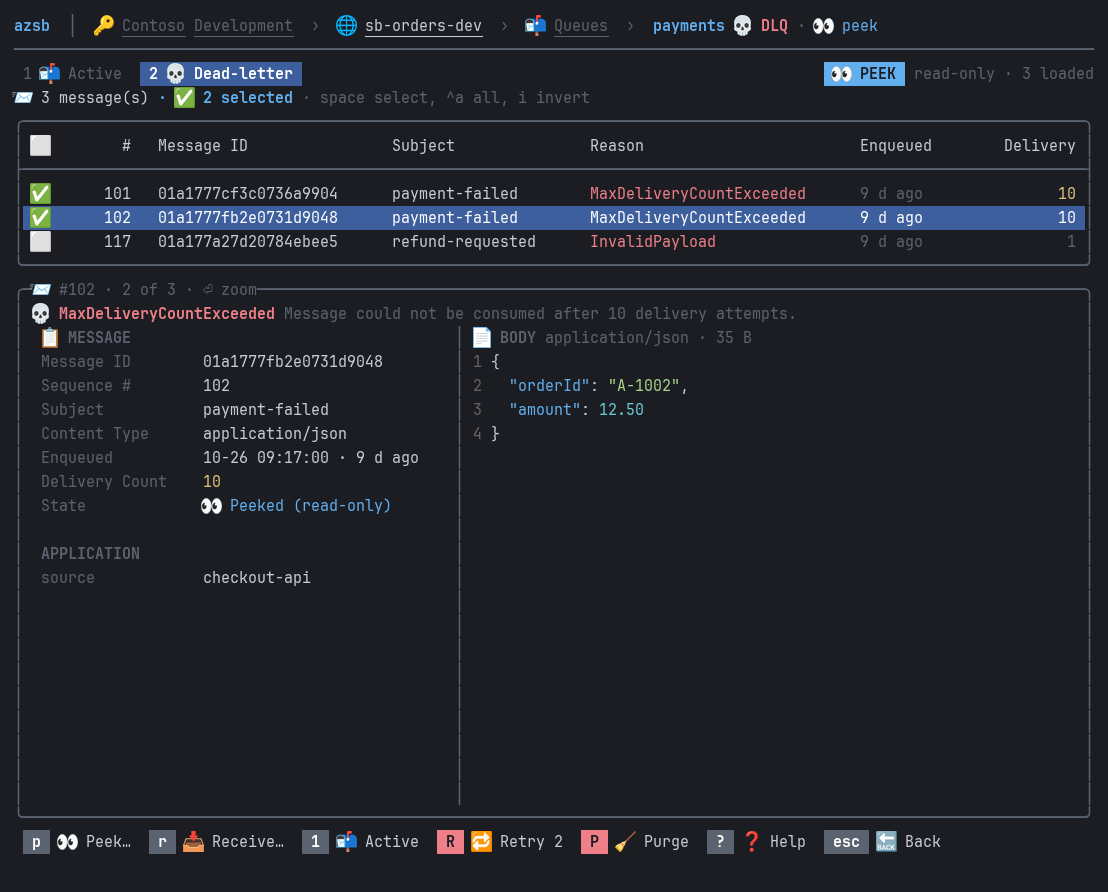
What it does
- Lists the Azure subscriptions of your
az loginand their Service Bus namespaces; no connection strings - Queues, topics and subscriptions with live active, dead-letter, scheduled and transfer counts
- Peek, receive (PeekLock) or receive-and-delete messages; complete, abandon or dead-letter locked ones
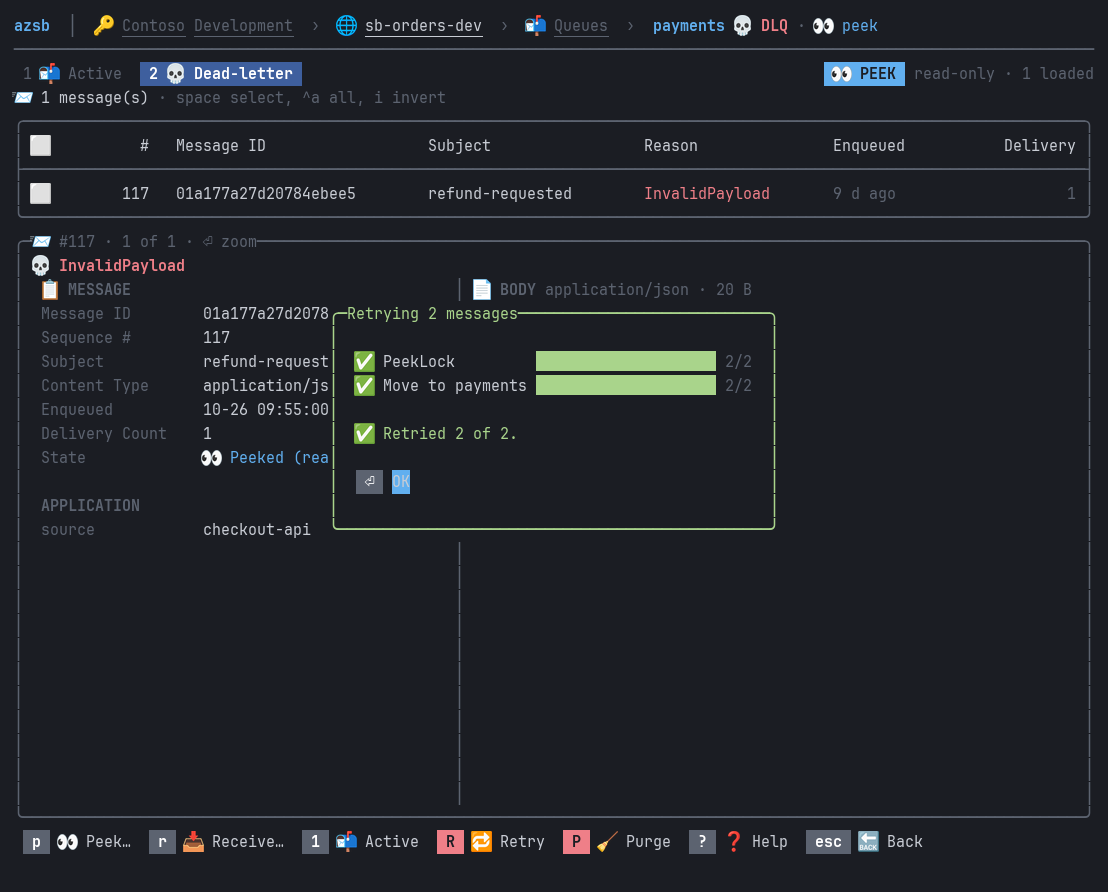
- Retry dead-letter messages to their queue or topic, in transactions on Standard and Premium namespaces
- Resend copies of messages, purge queues, delete entities
- Azure Monitor charts of throughput and backlog, from 1 hour to 30 days
- Works with the local Service Bus emulator
- Native executables for Linux, macOS and Windows (x64 and arm64)
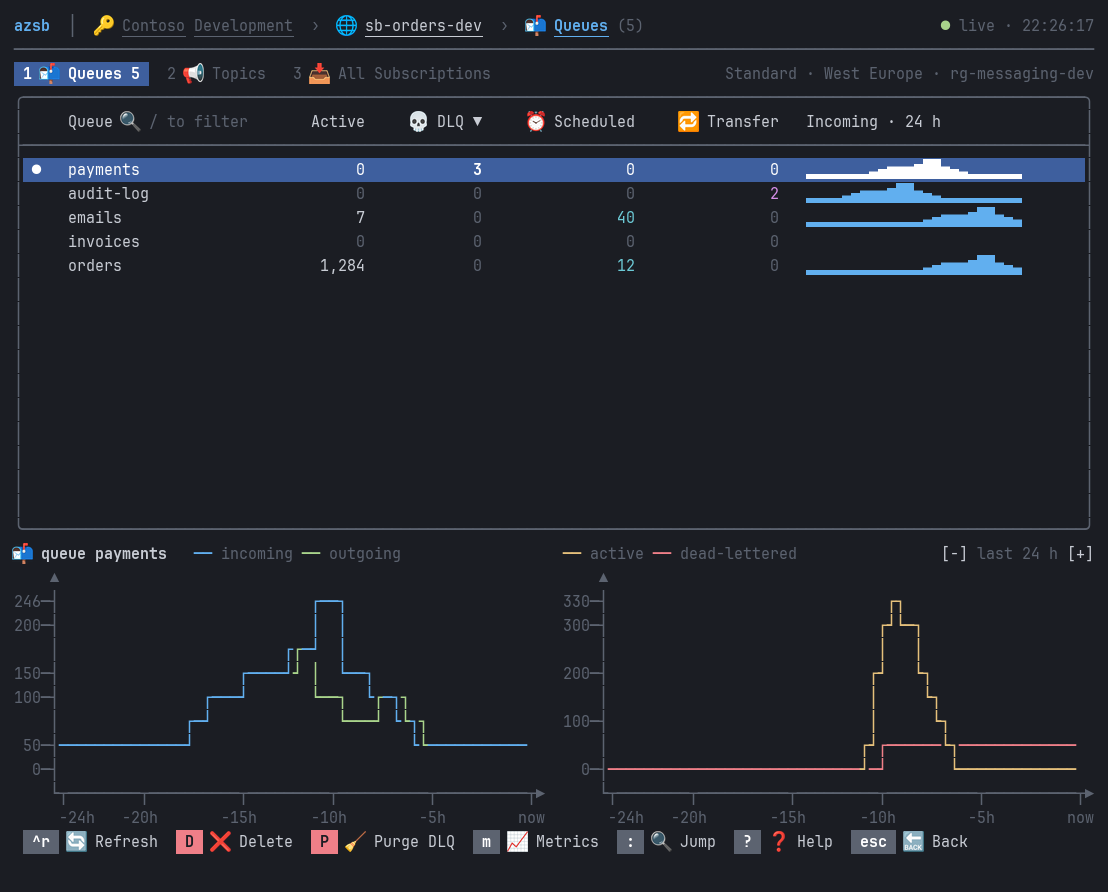
A Service Bus Explorer alternative for the terminal
The Azure portal's Service Bus Explorer and the standalone Service Bus Explorer app need a browser or Windows. azsb does the same day-to-day work (finding the queue with dead letters, reading why messages failed, sending them back) from any terminal, over SSH too, with the keyboard or the mouse.
Questions
How do I browse Azure Service Bus messages from the command line?
Install azsb, run az login, then azsb. Pick a namespace, open a queue or subscription and peek its active or dead-letter messages. azsb -s "My subscription" -n my-namespace -o orders/dlq opens a dead-letter queue directly.
How do I retry dead-letter messages in Azure Service Bus?
Open the queue or subscription, switch to the dead-letter tab, select the messages and press Shift+R. On Standard and Premium namespaces each batch moves in one transaction.
Does azsb need a connection string?
No. It signs in with your Azure CLI login and also connects to the local Service Bus emulator.